How to troubleshoot Flair
On this page
This guide helps you diagnose and fix common Flair issues.
If you haven't completed the quick start yet, start there first: How to get started with Flair.
Install the Flair Inspect tool to help diagnose issues as you work through this guide.
Common symptoms
You can follow the troubleshooting checklist below for a complete walkthrough of common Flair issues. To skip ahead to the relevant step, find your symptom below.
- Flair not showing anywhere
- Start at Step 1
- Flair showing on product pages but not collection, search, or home pages
- Start at Step 2
- Flair showing on some products but not others
- Start at Step 4
- Wrong badge or banner showing for a product
- Flair is on the page but not visible
- See Step 9
Troubleshooting checklist
Follow these steps in order to work through common Flair issues and their fixes. They're ordered by most likely to occur.
1. Verify Flair is enabled and set up
Make sure you've completed the quick start guide, which covers enabling Flair in your theme and setting up your first promotion.
2. Verify Flair is added to the page
Flair must be added to each page type where you want it to appear. See the setup guides for product pages and collection pages.
3. Check the Flair app block settings
This step applies if you added Flair using app blocks.
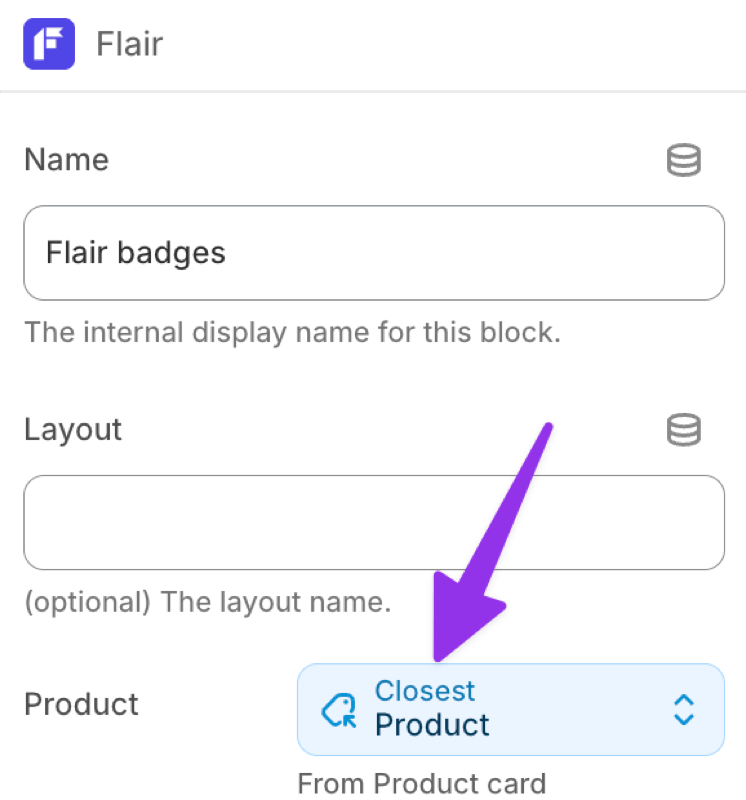
In the app block settings, confirm that Product is set to Closest Product. A different value may cause Flair to not display or to show for the wrong product.
4. Verify your Flair conditions are correct
This step applies if Flair is missing or showing incorrectly on specific products.
Verify that your promotion conditions match the Shopify product settings, such as:
- Product tags exist and are spelled correctly
- The product is in the expected collection
- Sale price matches
- Inventory levels match your condition thresholds, etc.
5. Confirm your collection settings
This step applies if you're using collection conditions.
Verify the following:
- The collection is published to the Online Store sales channel
- The Flair condition is set correctly. Use Any Collection to match products across all collections.
6. Confirm metafield Storefront access
This step applies if you're using metafield conditions.
The metafield must have Storefront API access enabled under Settings > Custom data.
7. Check if an integration is needed
This step applies if you're using another app that you want Flair to display in, such as a search app, collection filtering app, or page builder.
Some apps replace or extend the default product, collection, and search pages, which may require a Flair integration. Check the integrations page to find your app, or contact support if your app is not listed to see about a possible integration.
8. Verify your Flair layout and settings
This step applies if you're using layouts to show multiple promotions, group promotions, or position Flair elements.
Use Flair Inspect to confirm the correct layout is applied. Then review the layout settings to make sure they match what you expect.
9. Check for theme CSS conflicts
This step applies if Flair elements are on the page but not visible. This is an advanced troubleshooting step that requires Flair Inspect and browser developer tools.
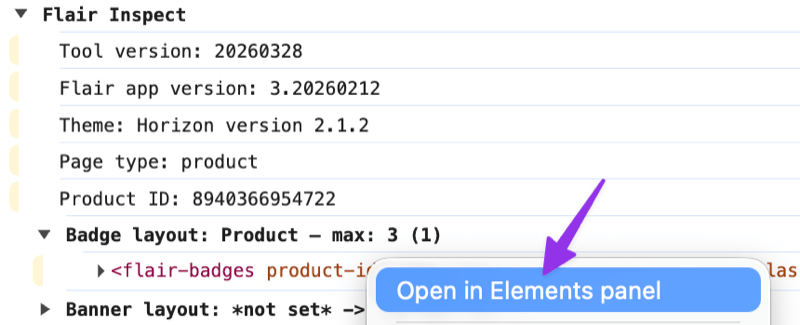
- Run Flair Inspect and open your browser's developer console. Find a Flair element in the console output, right-click it, and select Open in Elements panel.
- Verify the element isn't being hidden by CSS (e.g.
display: none). - If the element is positioned absolutely, check the
z-indexto make sure it's not behind another element. - If Flair shows up after running Flair Inspect, try applying this transparent border fix:
flair-badges { border: 1px solid transparent; }See also: How to add custom CSS to your theme
Still not working?
If you've worked through the steps above and Flair still isn't behaving as expected, contact support and we'll help you diagnose the issue.